




With Crypto (own wallet) you pay straight from your wallet – no voucher mark-up. You pick the coin on the invoice, send the amount, and your access starts automatically once the payment is confirmed on the network. You don't need to send us anything.
How it works Bitcoin via Lightning Which coins? Good to know If something goes wrong
How it works
- Put your access in the cart and choose Crypto (own wallet) at checkout.
- Tap your coin on the invoice page. Usually the coin you last paid with is already selected – Bitcoin the first time.
- You see the exact amount, the address for this invoice and a QR code. Other coins also show the network. Copy takes over the amount and address.
- Scan the QR code with your wallet or paste the address and amount, and send exactly that amount.
- Done. The invoice page shows you as soon as your payment is detected. Once confirmed, the invoice is paid and your access is listed under My Access.
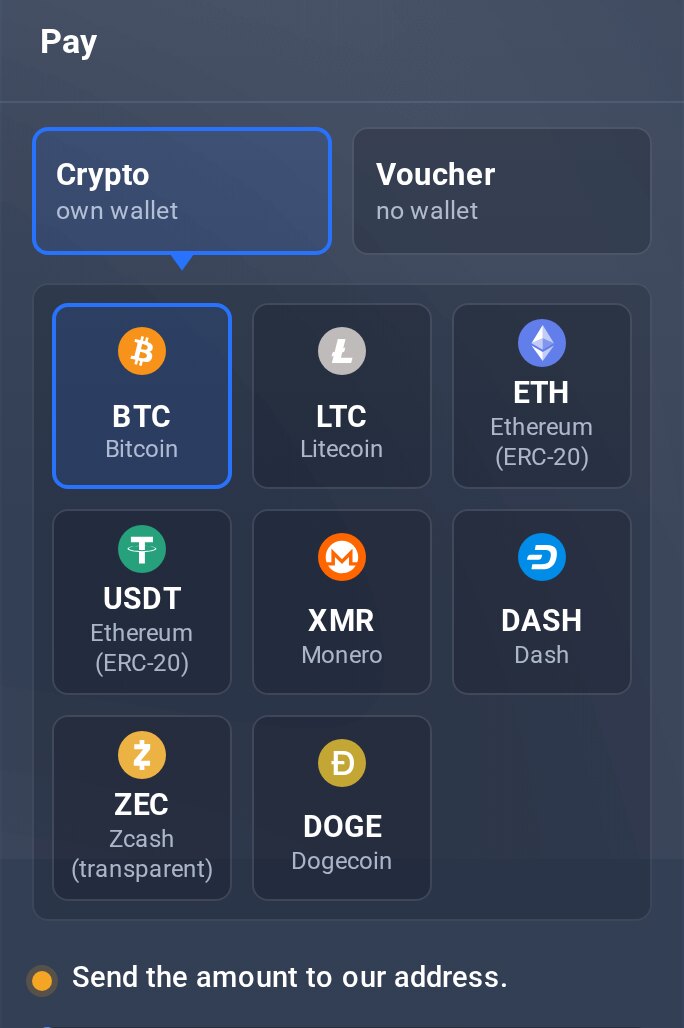
On the invoice: tap a coin.
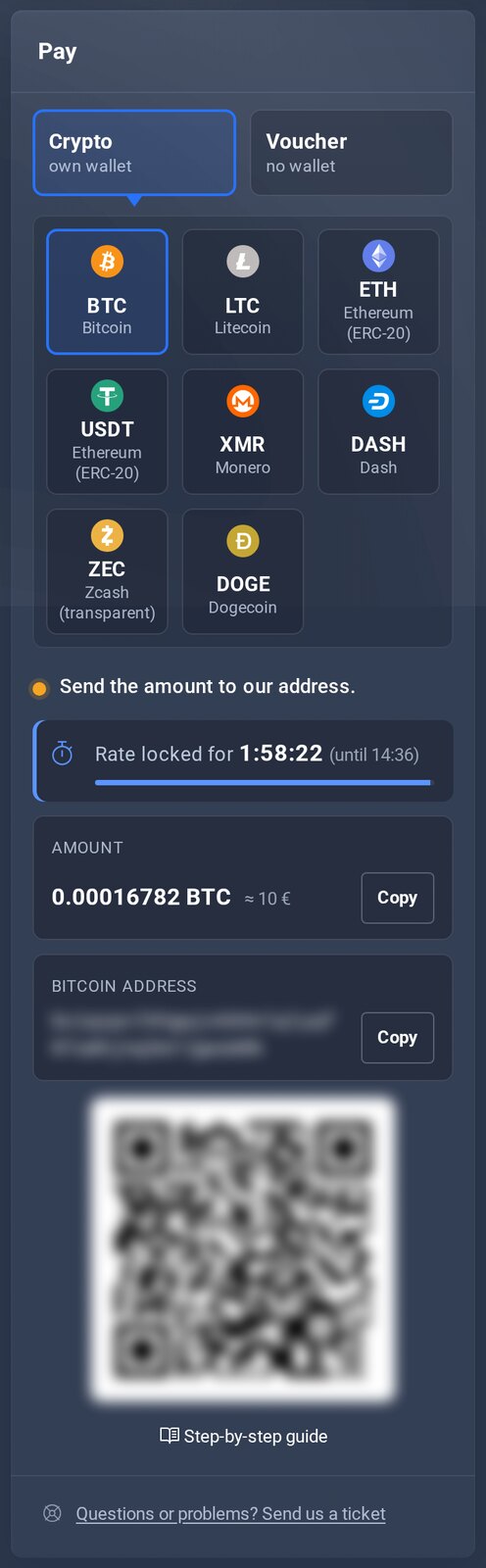
Amount, address and QR code.
Bitcoin via Lightning
With Bitcoin, the invoice usually shows two tiles: Bitcoin address and Lightning. Lightning is the fast way if your wallet or exchange supports it – the payment arrives within seconds. The Bitcoin address remains the standard way.
- With Bitcoin selected, tap Lightning.
- Scan the QR code with your Lightning wallet. If the wallet is on the same device or you pay from an exchange, tap Copy next to the Lightning invoice and paste it there.
- Confirm the payment. You don't enter an amount – it is already part of the Lightning invoice.
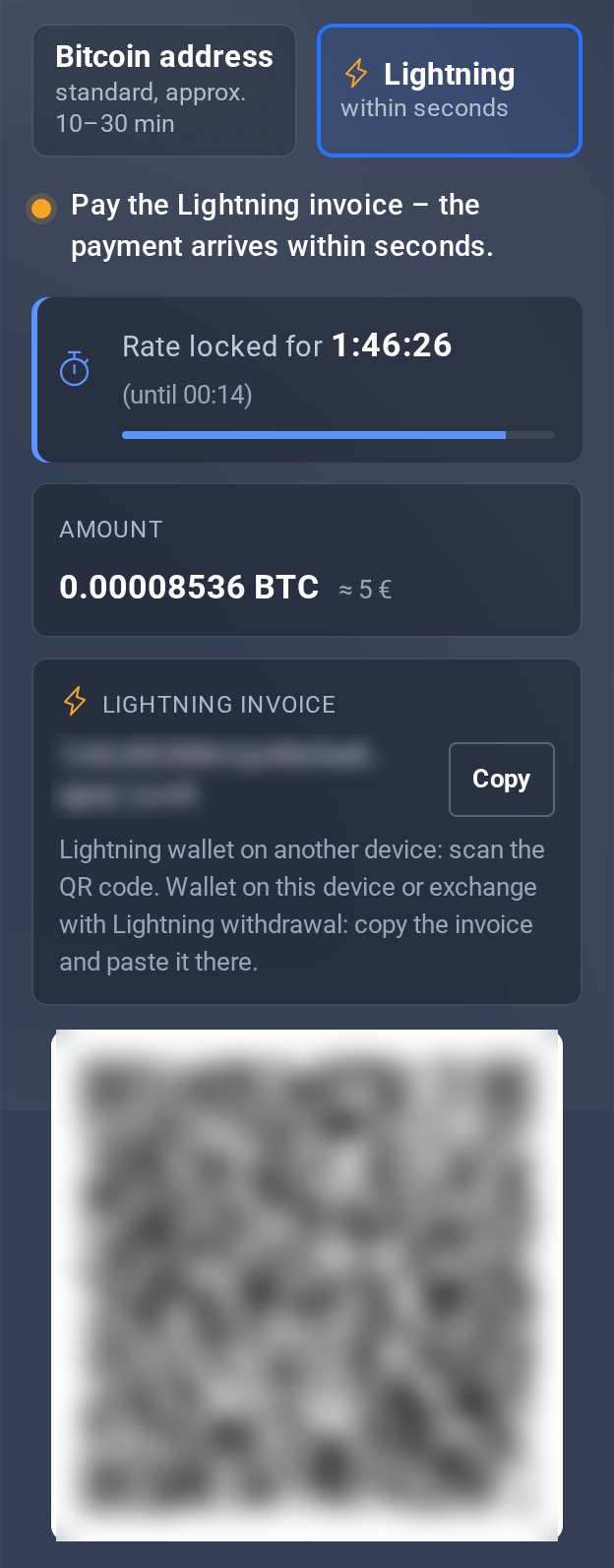
Lightning: scan the QR code or paste the invoice.
Which coins?
Bitcoin (BTC), Litecoin (LTC) and Monero (XMR) have no surcharge and work for any amount. If between 10 € and 300 € is still due on the invoice, you can also choose these coins:
| Coin | Network |
|---|---|
| Ethereum (ETH) | Ethereum (ERC-20) |
| Tether (USDT) | Ethereum (ERC-20) |
| Dash (DASH) | Dash |
| Zcash (ZEC) | Zcash (transparent) |
| Dogecoin (DOGE) | Dogecoin |
With these coins, the amount includes a small coin surcharge. The invoice then shows “incl. coin surcharge” below the amount. Confirmation takes a little longer than with Bitcoin; you don't need to do anything. If more than 300 € is due, the invoice doesn't show them – then pay with Bitcoin, Litecoin or Monero.
If Monero isn't directly available for a while, the invoice shows Monero with a coin surcharge. Monero then works like the coins above.
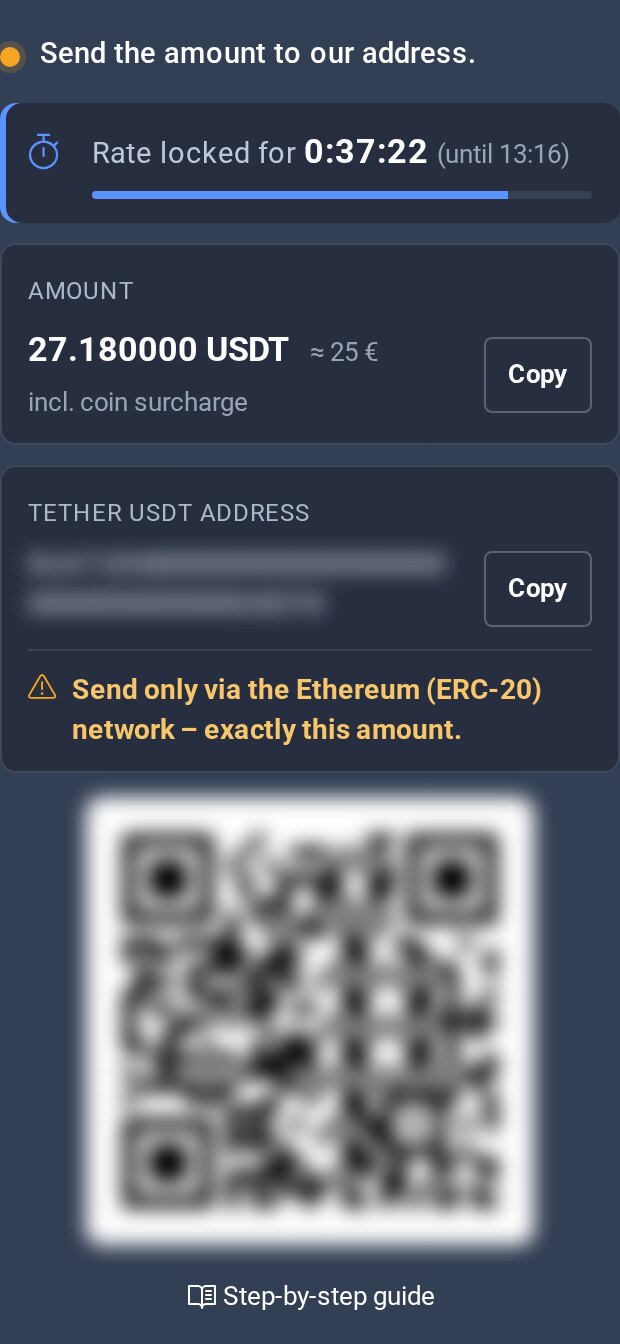
Other coins: amount with network.
Only send on the network shown. Use exactly the network the invoice shows – for USDT that is ERC-20. Money sent over the wrong network is lost.
Good to know
- Trial access can only be paid with crypto from your own wallet. If a trial is in your cart, this applies to the whole order.
- The rate is valid for a limited time only – the page shows how long. If it has expired, get a new amount there.
- Switch the coin by tapping another tile – as long as you haven't sent anything yet.
- Send each coin only to the address the invoice shows for it.
- Overpayments are not credited or paid out – send exactly the amount.
- With Lightning, always use the Lightning invoice the page shows right now. Once you get a new amount, an invoice you copied before no longer works.
Does your wallet or exchange ask about the recipient (Bitpanda, Coinbase, Kraken, Binance)? Extra details for wallet payments. No wallet yet? Set one up in a few minutes.
If something goes wrong
- Sent, but the invoice shows nothing yetPayments from exchange apps often take a while to reach the network. The invoice page then updates by itself – don't pay again. If the invoice is still open after an hour, open a ticket.
- The rate has expiredNot sent anything yet? Tap Get a new amount. Already sent? Don't pay again. With Bitcoin, Litecoin and Monero, open a ticket if the invoice is still open after an hour. With all other coins, open a ticket right away from the invoice. We add the details of this payment automatically.
- Payment needs clarificationToo little arrived, or something is wrong. Open a ticket from the invoice and we'll sort it out – we add the details of this payment automatically.
- Your coin is missingCheck the limits under Which coins?. Otherwise try again in a moment or pay with Bitcoin, Litecoin or Monero.
- The Lightning tile is missingLightning is only available for Bitcoin and not for every amount. Pay to the Bitcoin address instead.
- The Lightning payment doesn't go throughIf your wallet reports an error, tap Bitcoin address and pay there.
My Access Crypto or voucher? Open ticket (in the client area)
