




With your own wallet you pay your invoice directly in crypto – no voucher mark-up. Setting it up once takes about 15 minutes. After that you pay with a few taps: get a wallet, secure the phrase, buy crypto, pay in the shop.
Which wallet Set up Secure the phrase Buy crypto Pay
Which wallet
- Exodus – the all-rounderBitcoin, Litecoin, Ethereum, USDT and more; phone, PC and browser; buy crypto right in the app (card, Apple Pay, Google Pay, SEPA, PayPal – depending on country). Choose Exodus if you pay with Litecoin or another currency. Get Exodus
- Relai – the easiestBitcoin only, but very simple; buying and wallet in one app (SEPA, instant transfer, card, Apple Pay, Google Pay, PayPal); phone only. Choose Relai if you just want to pay in Bitcoin quickly. Get Relai
Both are safe and non-custodial: the keys stay with you, not with an exchange. Creating a wallet needs no ID; when buying crypto, EU providers require a short one-off ID check (1–2 minutes). More background: Wallet basics.
Set up the wallet
- Get the app only from the official source (website, App Store, Play Store) – beware of fakes.
- Open the app and choose Create new wallet.
- Set a PIN or enable Face ID or fingerprint.
Secure the recovery phrase
When creating the wallet it shows you 12 words – the master key to your funds.
- Write them on paper, in exactly that order, and keep them safe.
- Never store them as a photo, screenshot, in the cloud or in a chat.
- Never share them – not even with us. VenneTV never asks for your phrase.
Buy crypto
- Tap Buy in the wallet and enter the euro amount.
- Choose the payment method and complete the one-off ID check.
- The crypto lands directly in your wallet.
Tip: buy a little more than the invoice amount – that covers rate and network fees. The rest stays in your wallet for next time. Guides: Exodus · Relai.
Pay in the shop
- Order your access, choose Crypto (own wallet) at checkout and tap your coin on the invoice.
- The invoice page shows the address, a QR code and the exact amount.
- Tap Send in the wallet, scan the QR code and send exactly the amount. After the network confirmation your access is unlocked.
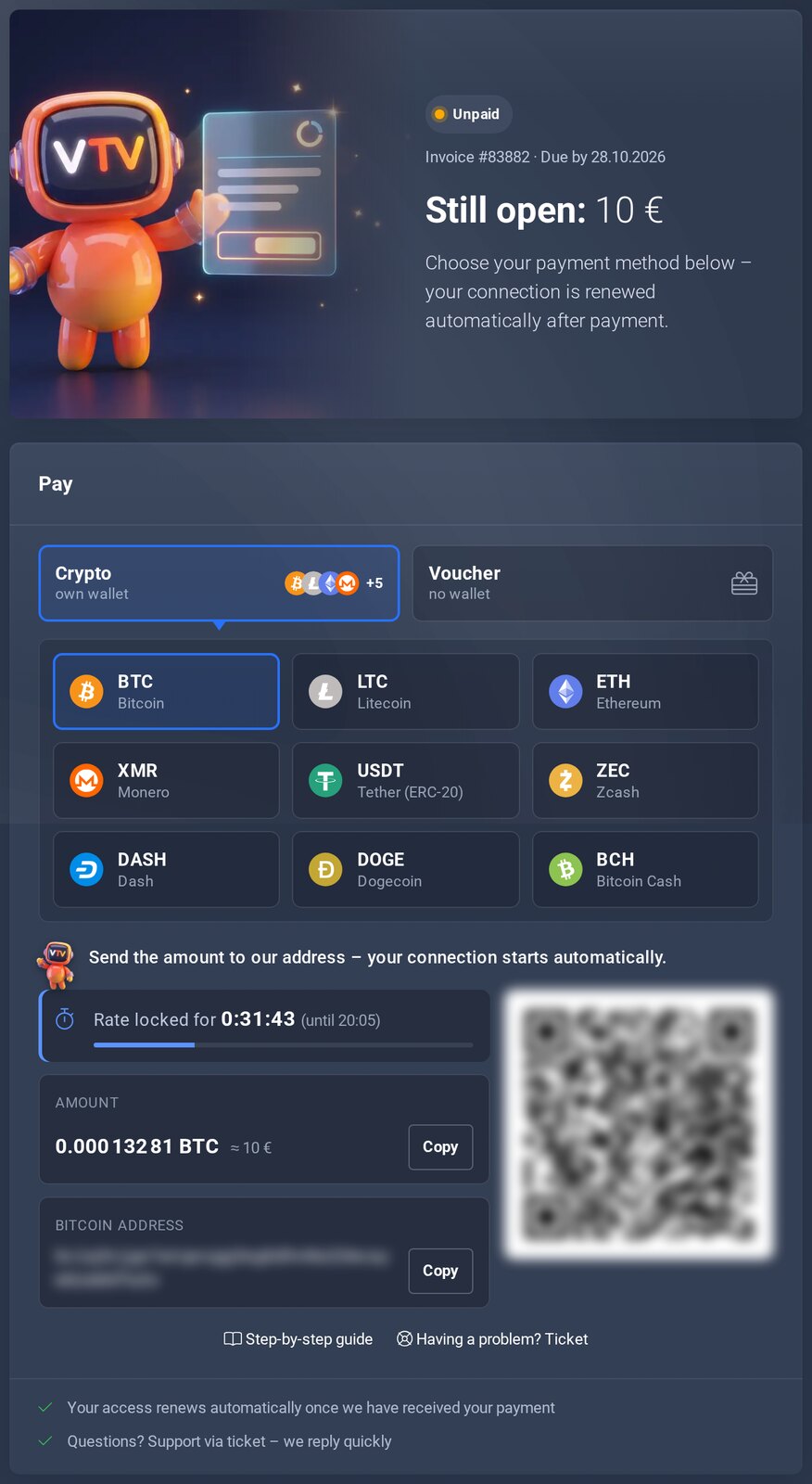
The invoice page.
Safety at a glance
- Always the right currency to the right address: Bitcoin only to a Bitcoin address, Litecoin only to a Litecoin address.
- Scan the address via QR code; when copying, compare the first and last characters.
- Send exactly the amount – overpayments are not credited or refunded. Every invoice has its own address; the amount is valid for a short time only – always use what the page currently shows.