




If one invoice covers several of your logins, you pay only for the ones you want now. The rest goes on a separate invoice that you pay later.
How it works The new invoice Why can't I do this right now?
How it works
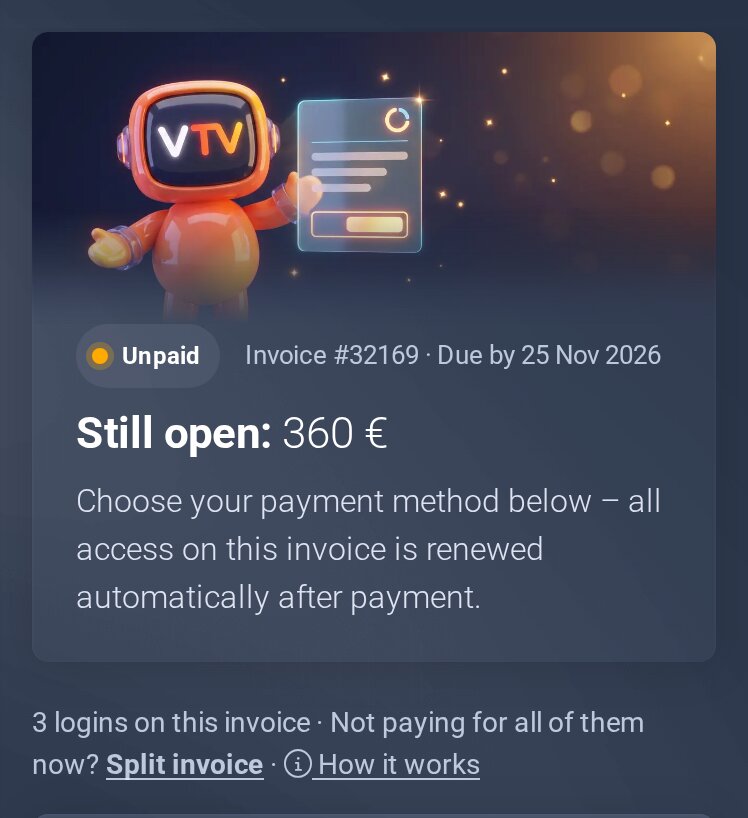
Open the invoice: from the invoice email or in the client area under My Invoices. The top of the invoice shows how many logins are on it.
- Tap Split invoice. Every login on it gets a tick.
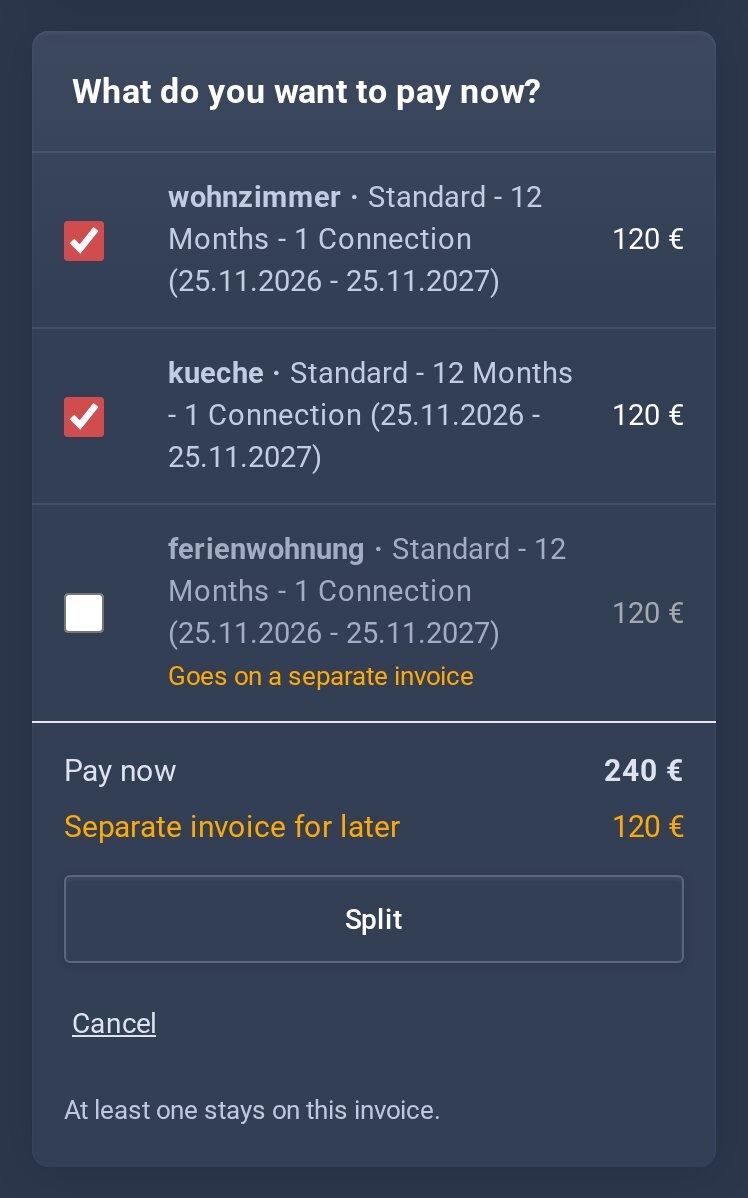
- Remove the tick for each login you want to pay later. Both amounts are shown at the bottom.
- Tap Split. A window shows what goes where and by when the new invoice must be paid.
- Tap Yes, split it.
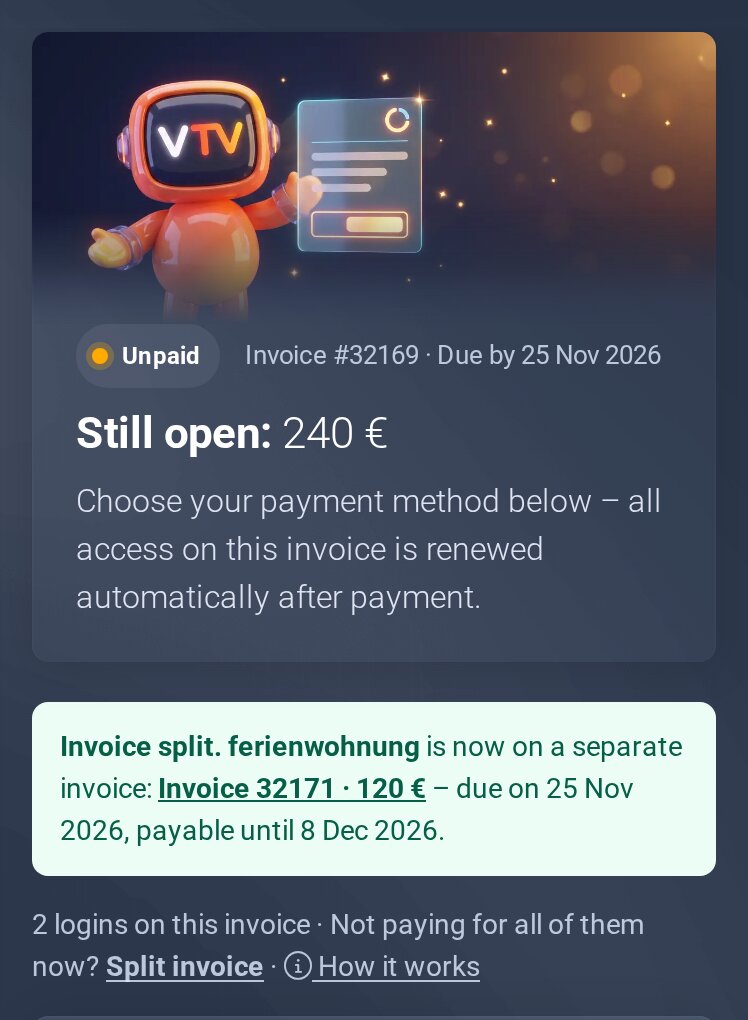
- Done. The invoice shows the new amount, with the link to the new invoice below. Pay as usual.
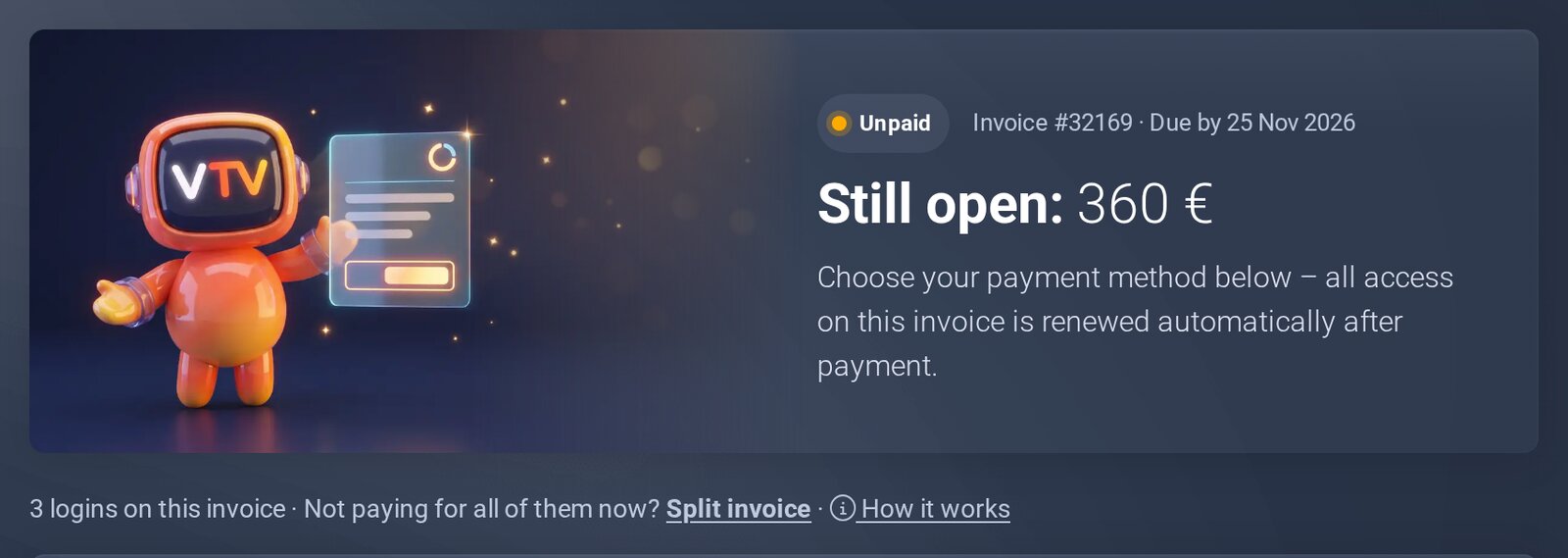
Step 1: Split invoice.
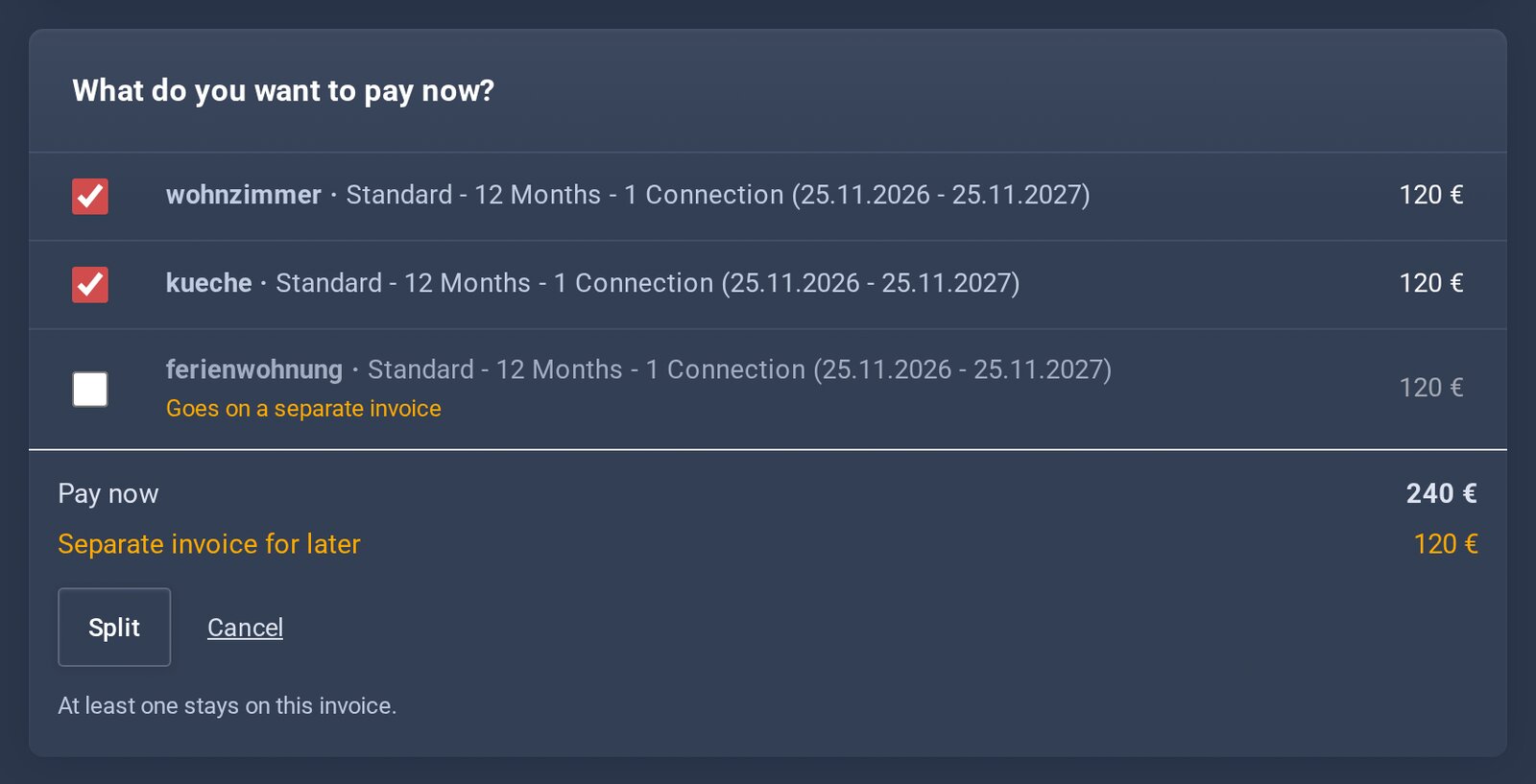
Step 2: remove the tick for everything that can wait.
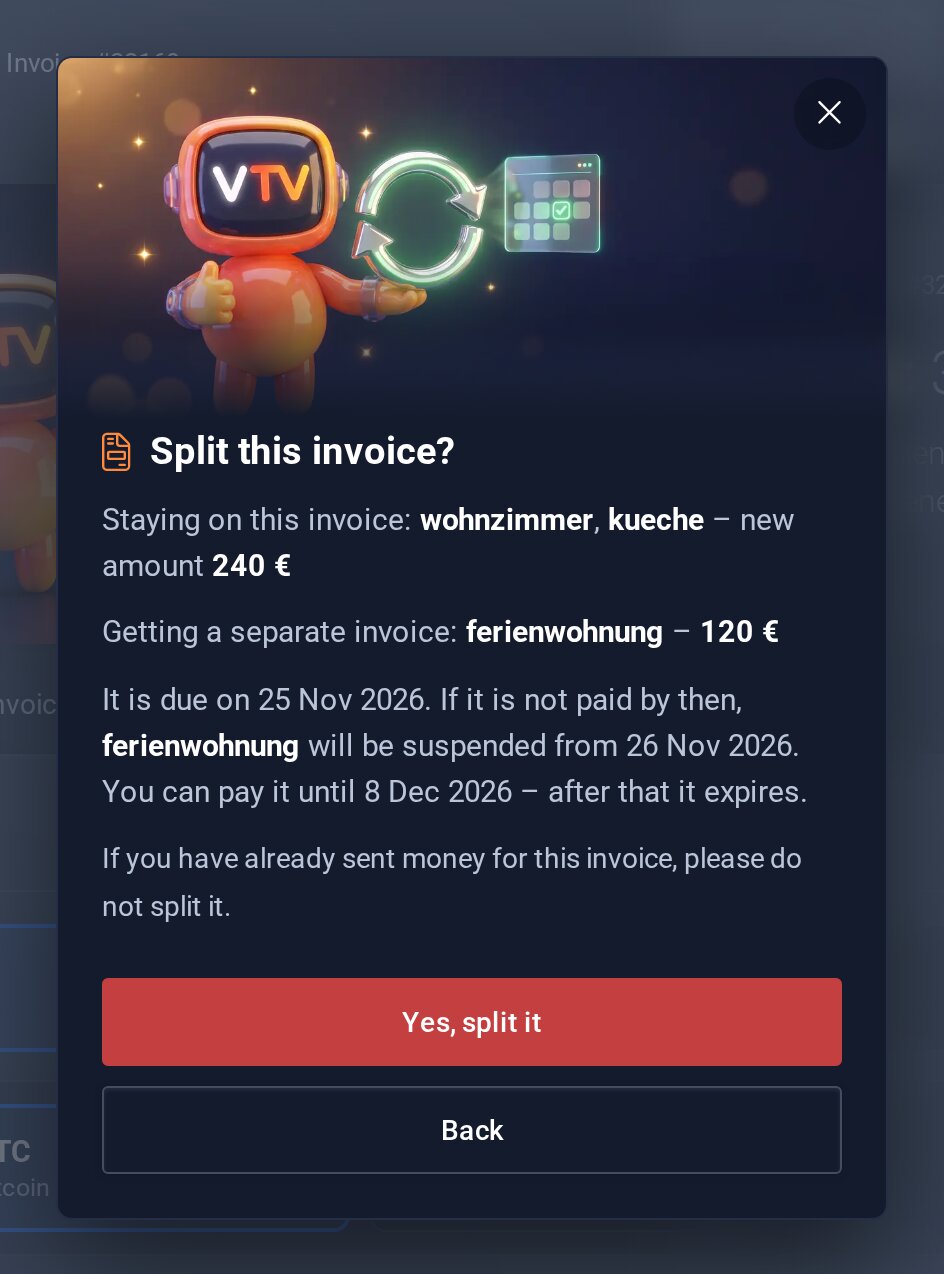
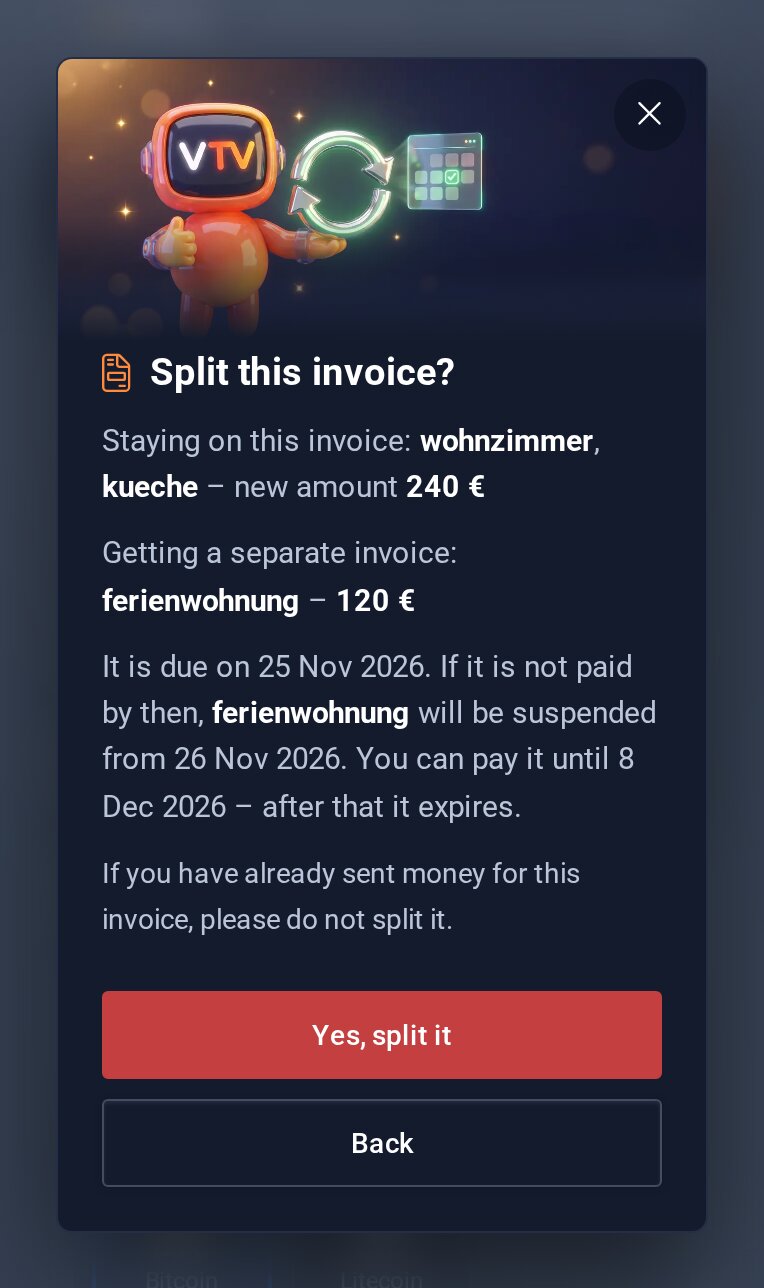
Steps 3 and 4: check and confirm.
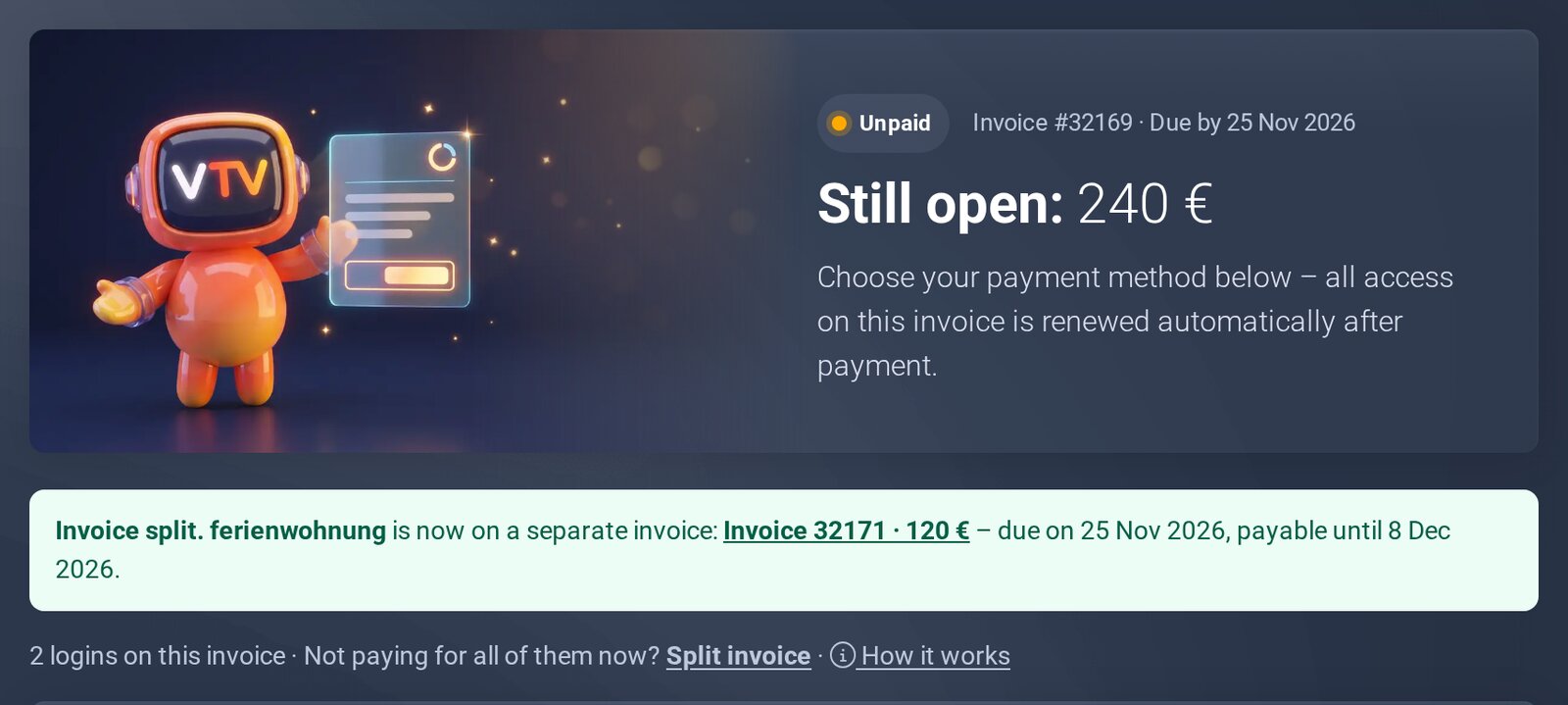
Step 5: new amount and link to the new invoice.
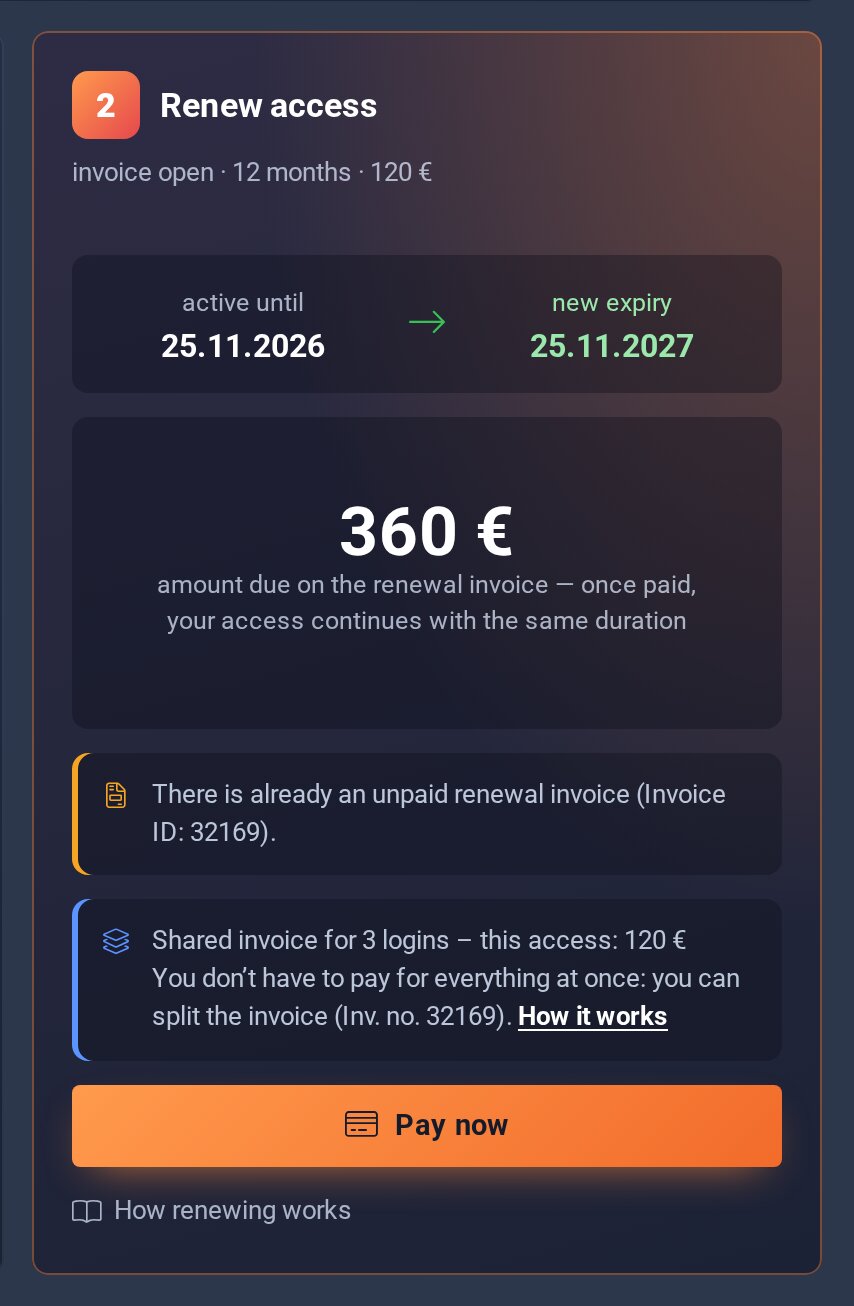
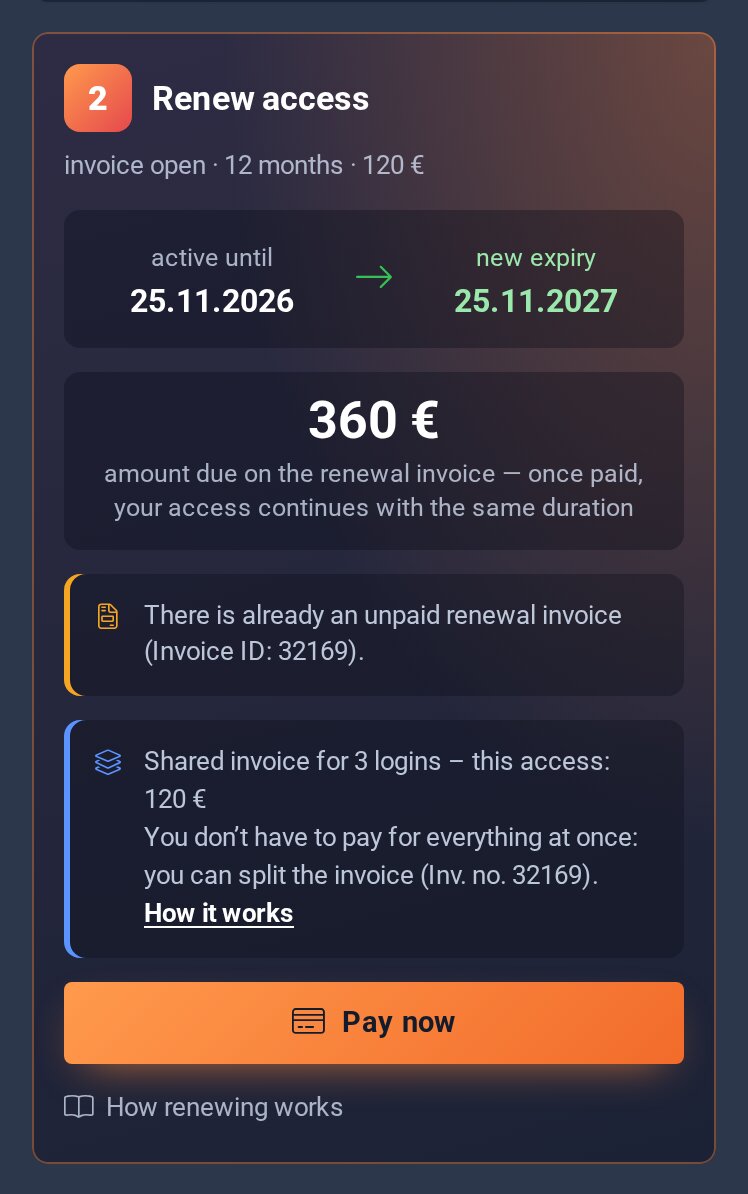
Your access page shows it too. Under Renew access you see “Shared invoice” with the amount for this access.
Note on your access page.
Good to know
- At least one login stays on the invoice. Its number stays the same.
- You don't get an email for the new invoice. The link is right on the page.
- If several logins are still on one invoice, you can split it again.
- Going back to one invoice is only possible by ticket.
Already sent money? Then don't split it. Otherwise your payment no longer matches the amount of the invoice.
The new invoice
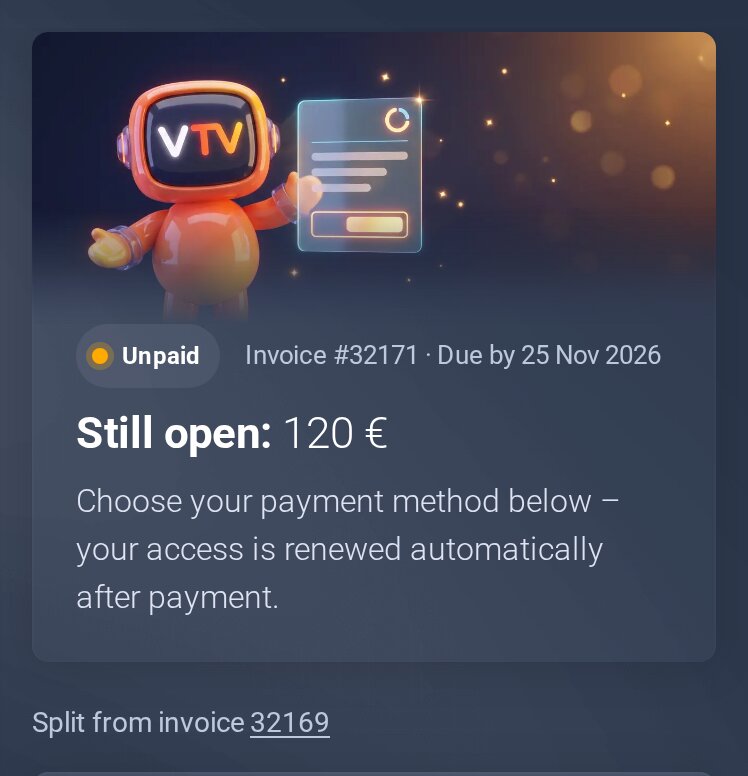
The new invoice is a normal invoice with its own number. You find it under My Invoices; at the top it says “Split from invoice …”.
- It has the same due date as the old invoice.
- When you pay it, every login on it is renewed. This also works after the due date, as long as the invoice is open.
- If it is not paid by the due date, the access is suspended from the next day. After payment it is active again.
- The window before splitting and the invoice itself show until when you can pay it. After that it expires.
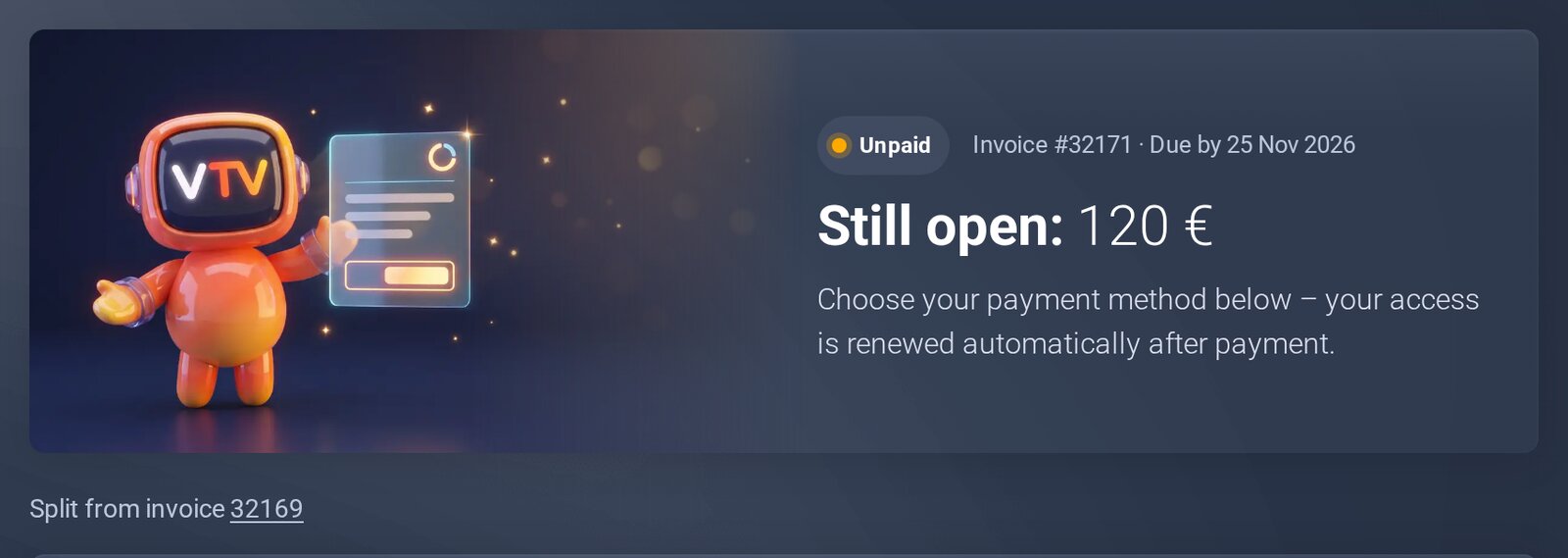
The new invoice.
Why can't I do this right now?
- Payment on its wayA payment for this invoice is already on its way, or part of it is paid. Then you can no longer split it. If you still need a change, open a ticket.
- Invoice from the cartIf you bought or renewed at the checkout, you already made your choice there. That invoice stays whole.
- Only one loginIf the invoice covers just one login, there is nothing to split.
- Invoice paid, cancelled or expiredSplitting only works for open invoices.
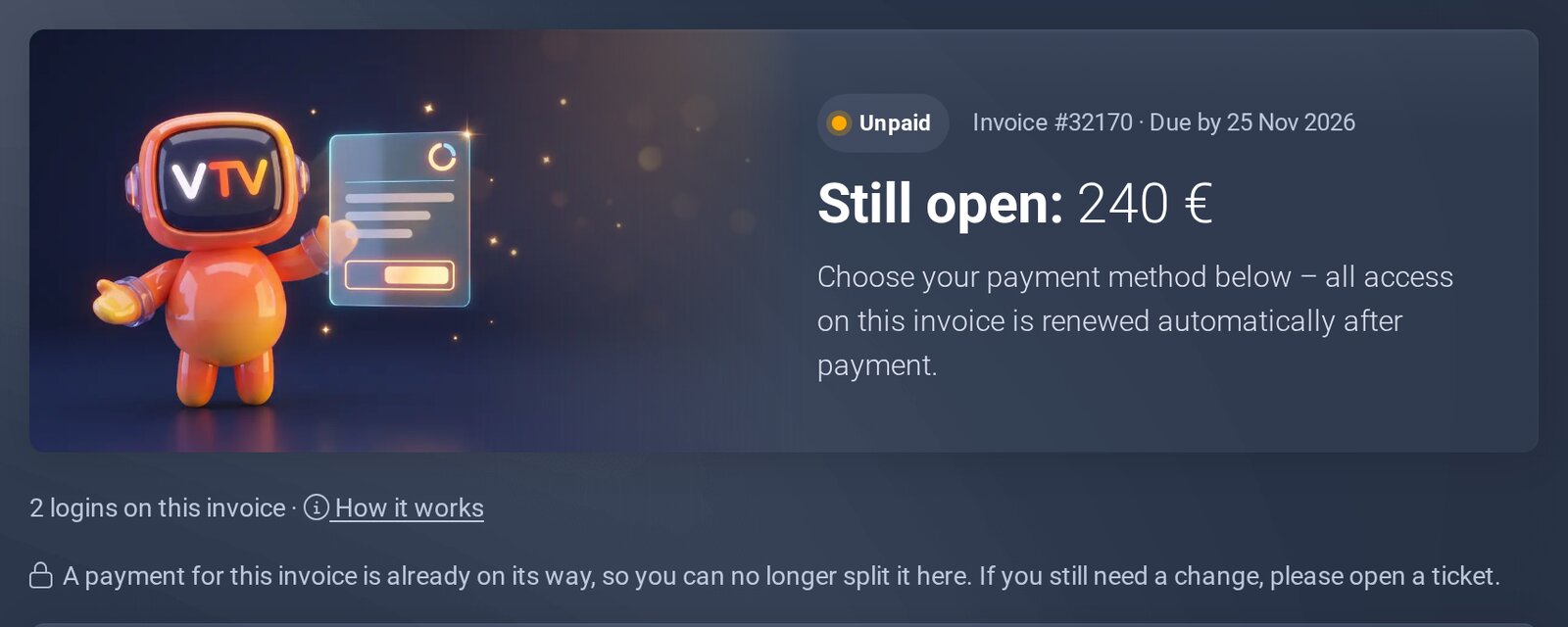
This is what “payment on its way” looks like.
See also
