




This is how our IPTV runs on an Enigma2 receiver (OpenATV, 4K, H.265). You import live TV with E-Channelizer and the TV guide with EPG-Importer. Movies and series you watch with Xstreamity. Read the guide once in full before you start.
Prepare E-Channelizer EPG-Importer Xstreamity
Prepare
You need a Windows PC, an Enigma2 receiver from 2017 or later with OpenATV and a hard disk or USB stick for the EPG.
E-Channelizer on the PC
- Download E-Channelizer (free) and tick “check for BETA updates” during installation.
- After the first start click Activate at the top right.
- Request the 2-week trial licence.
On the receiver, ideally on a fresh OpenATV installation:
- Set a root password: Settings › System › Network › Set up password.
- Change the EPG location from “internal” to /media/hdd – this spares the flash memory.
- Install the extensions EPG-Importer and Xstreamity (green button › Extensions).
- Optional: assign a hotkey for EPG-Importer under Settings › Usage & GUI › Hotkey.
- Optional: give the receiver a fixed IP under Settings › System › Network › Adapter settings › Obtain address automatically: No.
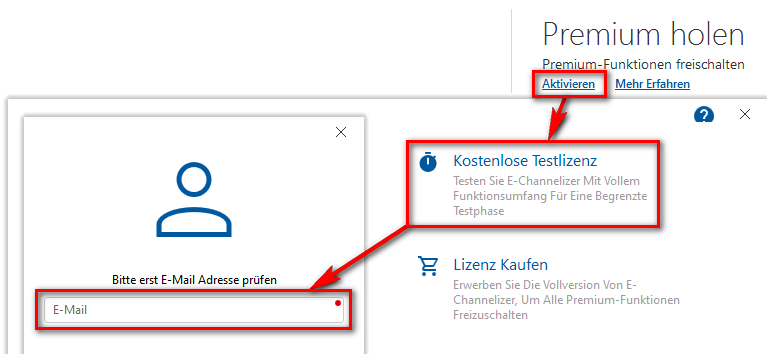
Activate E-Channelizer.
E-Channelizer: transfer the channels
- Playlist › Add new: enter the username, password and server address from your login data; keep only Live enabled (movies, series, catch-up off). Give it a name at the top left – required.
- Let the channel logos load briefly, then cancel. Right-click groups you don't need and put them on the blacklist.
- Devices › Add new › Advanced: name, the receiver's IP, root password; logos to /media/hdd/picon.
- Devices › Send, answer the DVB query with No – the channel list lands on the receiver.
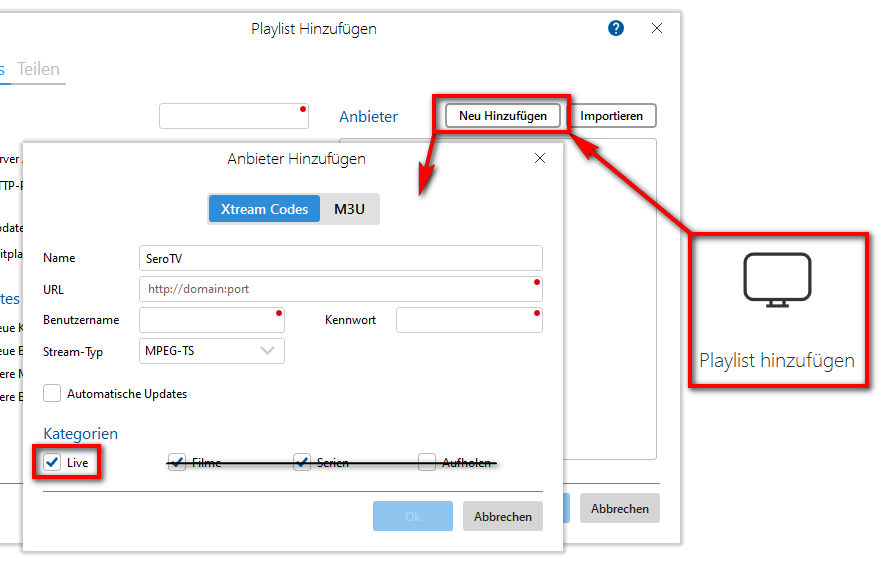
Create the playlist.
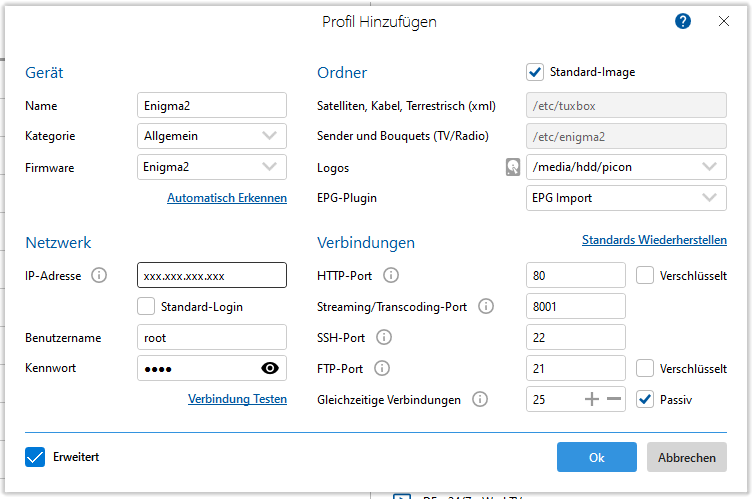
Add the device, send.
EPG-Importer: load the TV guide
- Open EPG-Importer (hotkey or menu).
- Choose the days, enable the sources and save.
- Press the yellow button – the import takes 2 minutes at most.
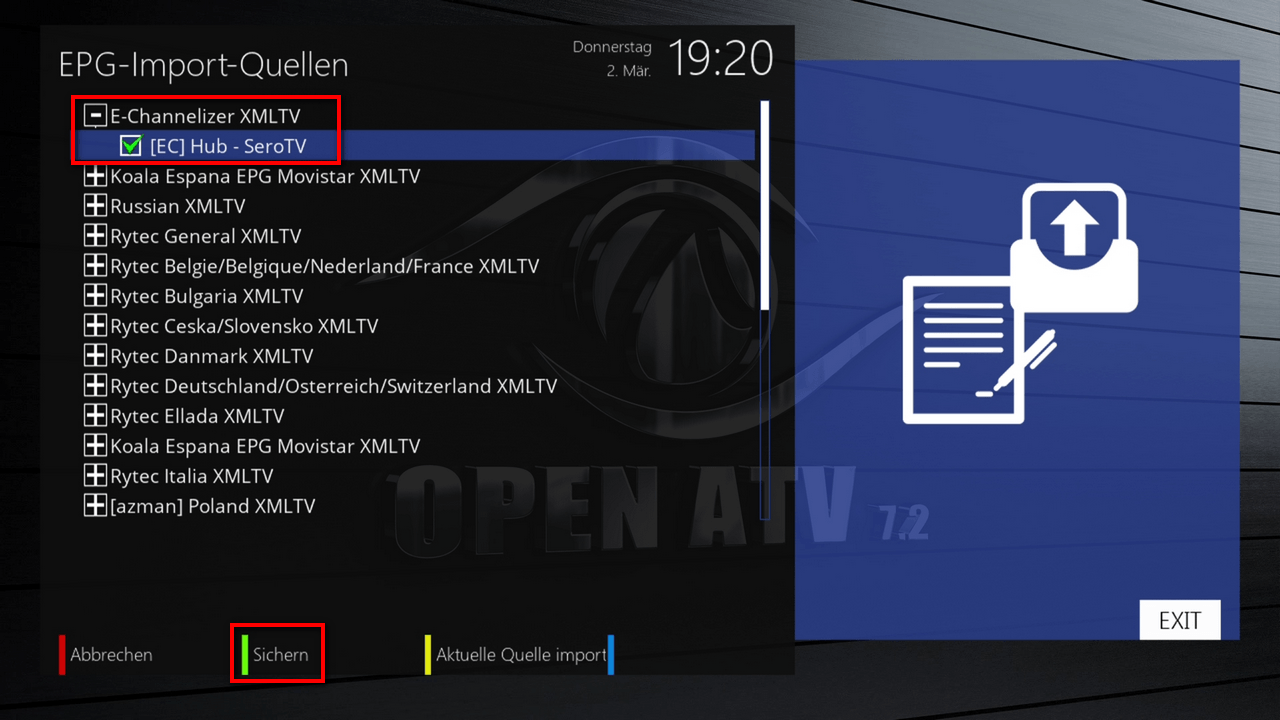
EPG-Importer.
Xstreamity: movies, series, catch-up
Enter your login data under Menu › Xstreamity › Main Settings – it's easier via OpenWebif in the browser. Afterwards you'll find Vod (movies) and TV Series in the Xstreamity menu; under Catch Up TV you can watch past programmes.
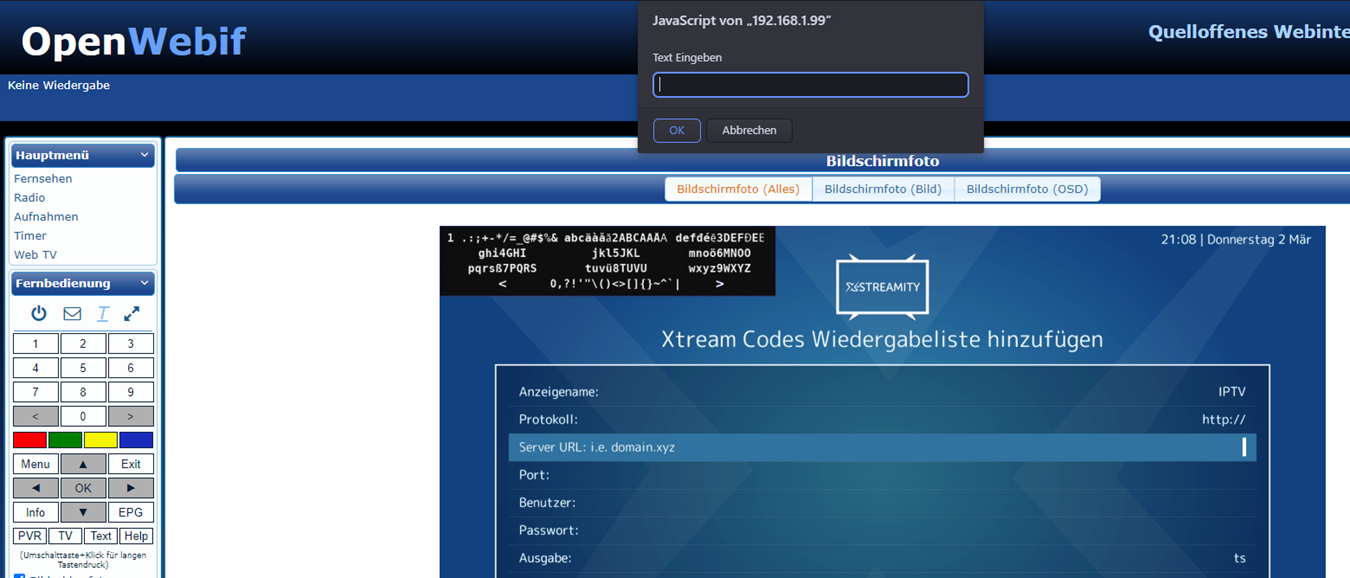
Set up Xstreamity.
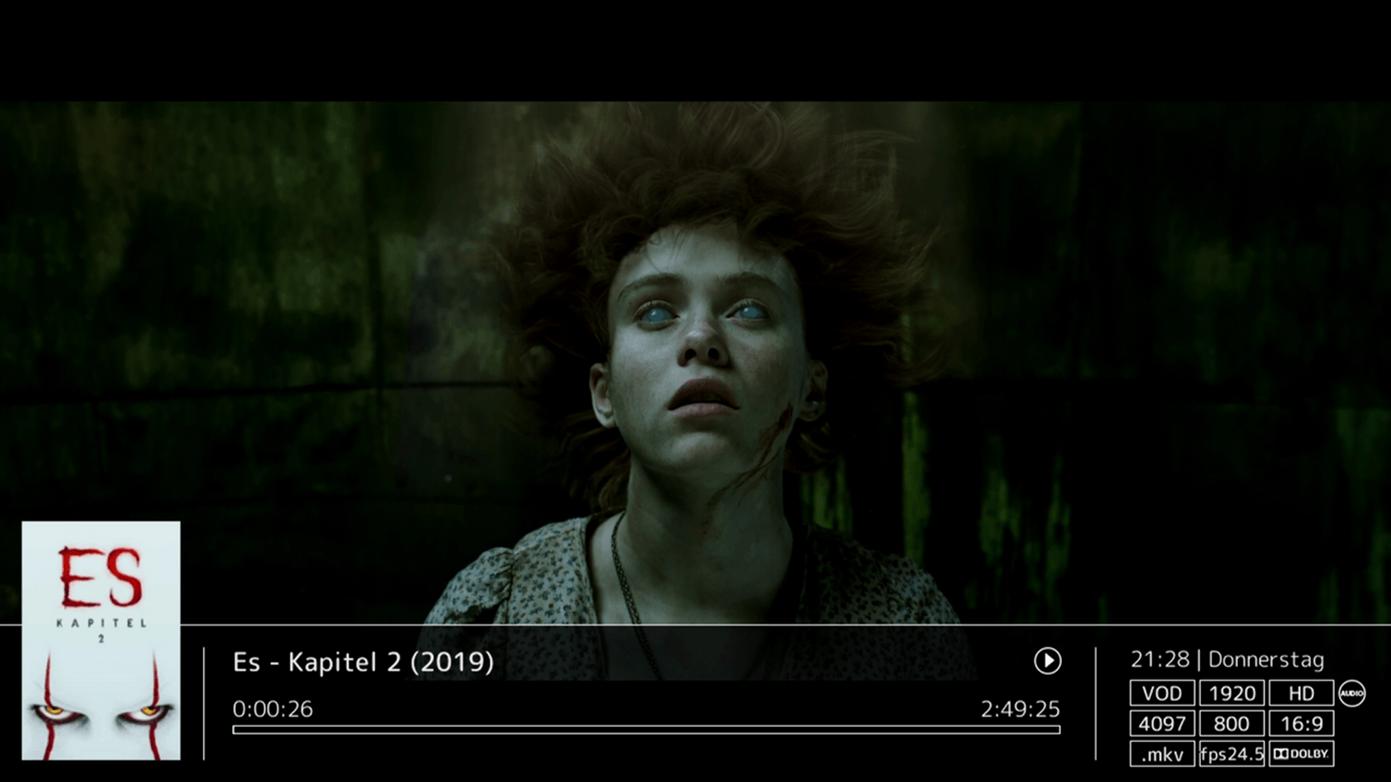
Movies, series, catch-up.
