




Your access has three server addresses: Main URL, Backup URL and For ITA customers. If the Main URL is down, switch to the Backup URL – with the same login data. All three are on the page of your access under Login data › Server address.
- Main URLThe normal address for everyone.
- Backup URLA second route via another provider. Use it when the Main URL isn't reachable, for example during an outage or an attack. It also helps when it stutters despite a fast line.
- For ITA customersFor customers in Italy or with an Italian internet provider: how to set it up.
Be prepared
Create a second playlist in your app with the same login data and the Backup address. If the Main URL goes down, you just switch playlists. In TiviMate: Settings › Playlists › Add playlist.
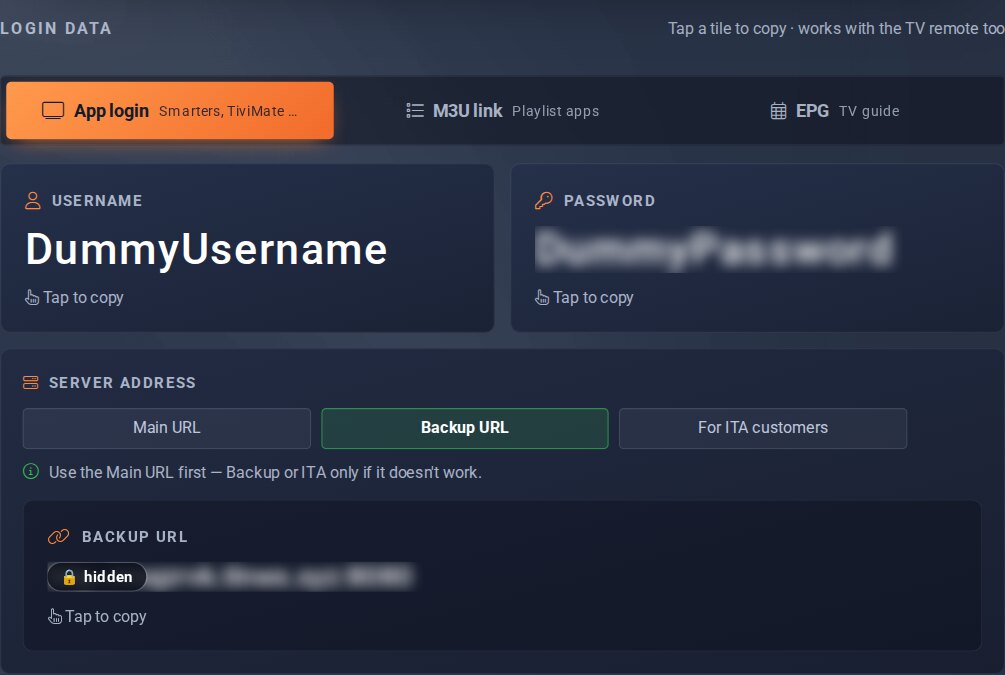
Server address, here Backup URL; tapping the tile below copies the address.
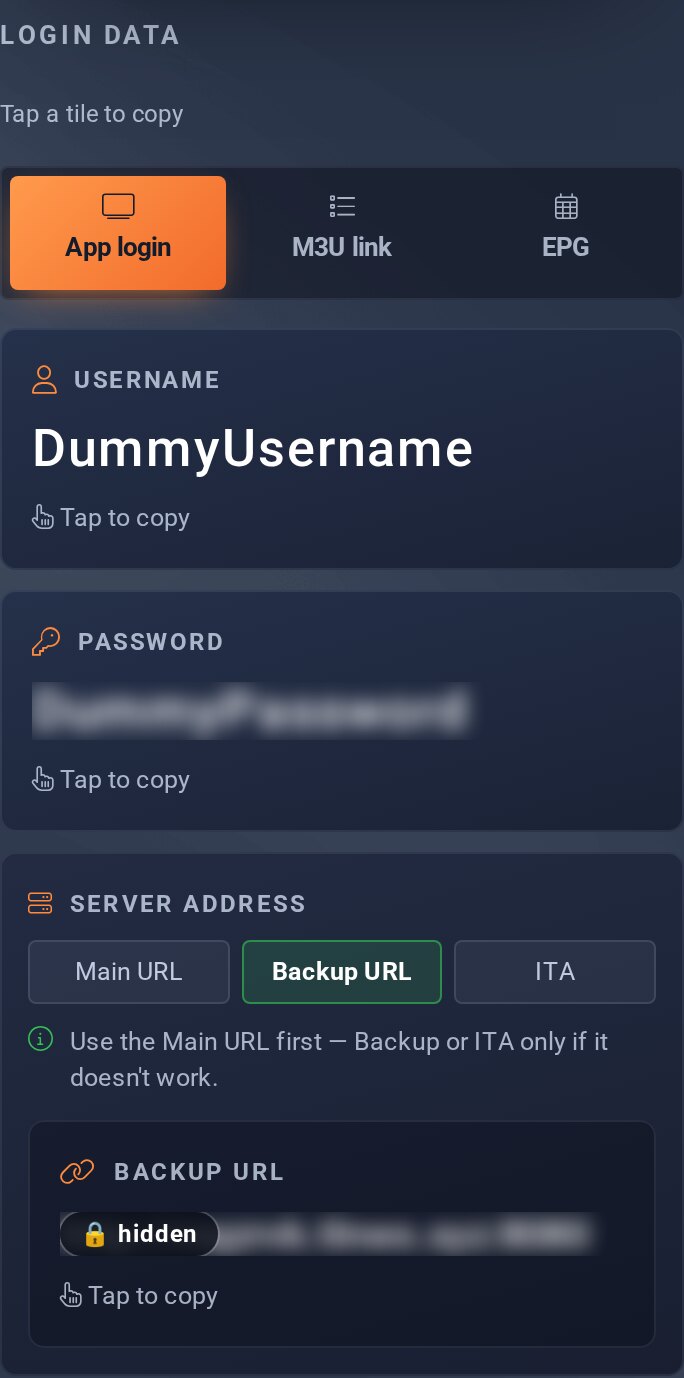
For customers in Italy
If you're in Italy or with an Italian internet provider, use the address For ITA customers. Username and password stay the same.
- On the page of your access, under Login data › Server address, choose the button For ITA customers and tap the tile below it – the address is copied.
- Create another playlist in your app as described above and choose Xtream Codes Login.
- Paste the copied address as the Server URL – complete, with the port at the end. Enter username and password and save.
If it doesn't run better via the ITA address, switch back to Main URL or Backup URL.
Good to know
- The button selects the address, the tile below copies it – nothing to type.
- You see the server addresses as long as your access is active.
- If it only stutters for you, a different route on the internet often helps: Fast line, still stuttering.
